Most of the questions your customers ask on WhatsApp don’t follow a defined script. Someone asks whether a product comes bigger, another wants to know when their order will arrive, and a third asks if you deliver to their area on Sundays, and so on. Generally, a rule-based chatbot handles the questions you planned for, and everything else waits in the inbox until someone on your team gets to it, and in the worst case, your customers have to wait to get their answers.
That wait costs you as replies slow down after hours, the same questions take up your team’s day, and many customers simply move on to your competitor.
But things become a bit easier if you have a WhatsApp AI Agent set up. Your agent reads what the customer typed, finds the answer in your business data, and replies in seconds, at any hour. And when a conversation needs a human, it hands the chat to your team, or you can step in anytime.
In this guide, we’ll give you a step-by-step guide on what the WhatsApp AI Agent is, how it works with the official Meta Business Agent, what it costs, and how to set it up and manage it in WANotifier. So, let’s start!
What is the WhatsApp AI Agent?
The WhatsApp AI Agent is an AI assistant that replies to your customers on WhatsApp on your behalf. It understands free-form messages in the language your customer types in, answers using the information you give it, and passes the conversation to a human when it can’t help.
In WANotifier, the AI Agent is powered by the Meta Business Agent. It is Meta’s official AI agent for the WhatsApp Business Platform, and Meta runs the agent itself. WANotifier connects it to your number and gives you one place to easily set it up, train it, test it, control who it replies to, step into its conversations, and track how it performs. All of this without writing a single line of code.
With the WhatsApp AI Agent, you can:
- Answer customer questions 24/7 in natural language that your customers type in, without building complex flows for each one
- Train the agent on your business info, FAQs, documents, and website pages so that the replies are relevant to your business
- Connect it to your own systems like CRM, store, etc. via MCPs and HTML protocols, so it can look up live data like order status or stock updates
- Hand conversations to your team automatically when the agent can’t help, with a notification to the right person
- Take over any conversation from the WANotifier inbox and hand it back to the agent when you’re done
- Track how many conversations it handled and how many are waiting for a person
How Does the WhatsApp AI Agent Work?
Once the agent is live on your number, it becomes the first responder for incoming messages. Let’s see what actually happens behind the scenes:
- A customer sends you a message – The agent will read it and check everything that you’ve given it: business info, FAQs, files, website pages, and any external systems that you have connected.
- The agent replies – Its reply will show up in your WANotifier inbox, labeled as sent by the AI Agent, so your team can see every conversation it handles.
- It hands off to a human when needed – If the customer asks for a person, or the agent isn’t confident about an answer, it will pass the conversation to your team with a short message to the customer.
- Your team can step in at any time – When someone on your team replies, the agent doesn’t respond in that chat. You can hand it back to the agent with one click when you’re done.
The AI Agent works independently of your chatbots. It isn’t a step you add inside a bot flow. You can run it on its own, or alongside your rule-based flows for things like lead qualification and bookings.
WhatsApp AI Agent vs. Rule-Based Chatbots
Both have their place. Here’s how they compare:
| Particulars | Rule-based chatbot | WhatsApp AI Agent |
| How it replies | Follows the flow you design, with buttons, steps and keyword triggers | Understands free-form questions and writes its own replies |
| Best for | Lead qualification, bookings, menus and other structured journeys | Open-ended questions, FAQs, product and policy questions |
| Setup | Build each flow in the drag-and-drop builder | Add your business info, FAQs, files and website pages |
| Live data | API request nodes inside the flow | Connectors to your APIs or MCP servers |
| When it can’t help | Routes the chat to your team at a fixed step | Hands off on its own when a person is needed |
Connect the official Meta Business Agent to your number and manage it from WANotifier.
WhatsApp AI Agent Use Cases
If your business answers the same questions over and over, you can put the AI Agent to work. Let’s see a few examples now:
E-commerce and Retail
Shoppers ask about sizes, materials, stock, shipping times, returns, and payment options, often while they’re deciding whether to buy. The agent answers from your product data and store policies, and with a connector to your store’s backend, it can check live order and shipping status too. That means fewer “where is my order?” chats for your team, fewer abandoned carts leading to more revenue.
Real Estate
Prospects want to know about price, photos, size, amenities, possession dates, and location before they book a visit. The agent answers from your listings and project brochures, so every inquiry gets a reply right away at any time of day.
Education
Students and parents ask about courses, eligibility, fees, schedules, and admission deadlines. The agent answers from your course details and admission documents, and hands serious applicants to your admissions team, so you don’t have to spend your time on weak leads.
Travel and Hospitality
Travelers ask about packages, inclusions, check-in times, visa requirements, and cancellation policies. The agent answers from your package details, website, and policies, and passes any escalations to your team.
Restaurants and Food Businesses
Diners ask about the menu, opening hours, delivery areas, and table availability. The agent answers instantly, so no customer waits for a reply during the dinner rush.
Note that Meta doesn’t allow the agent for some business types, including finance, government, health, alcohol, and gambling. There is more to eligibility rules as published by Meta, which we shall discuss below.
What You Need Before You Start
Before you set up the AI Agent, you need to make sure you have the following:
- A WANotifier account on the Advanced or Premium plan. The AI Agent and AI Agent Insights are part of these plans, and you can compare plans on our pricing page.
- A phone number connected to the WhatsApp Cloud API. As published by Meta, the agent can’t run on a number that also uses the WhatsApp Business app through WhatsApp Coexistence. Meta doesn’t support it there, either through the API or in the app. And if your number uses coexistence, you can add a new number directly to WANotifier, or move your current number fully to the Cloud API.
- An eligible business. Meta decides eligibility for each WhatsApp Business Account and phone number based on the type of business (see the next section).
- A payment method in Meta’s Billing Hub. Meta bills the agent’s usage directly. Without a payment method, the agent can only reply to numbers on your allowlist.
Who is Eligible for the Meta Business Agent?
Meta allows the agent on a number only when all of these are true for the number and its WhatsApp Business Account:
- Your business vertical is supported, like e-commerce, real estate, restaurants, etc. Some of the verticals that aren’t supported are: finance, government, health, alcohol, and gambling businesses.
- You have set a business category on your account.
- Your business is based in a country where the Meta Business Agent is available.
- Neither your account nor your business is restricted on WhatsApp, and you meet Meta’s trust and verification requirements.
- No other authorized AI agent integration is active on the number.
- The number isn’t also used in the WhatsApp Business app (coexistence).
WANotifier checks eligibility for you during setup, so you’ll know right away if anything is missing.
How Much Does the WhatsApp AI Agent Cost?
When we talk about the costs, there are two parts that we need to consider:
- Your WANotifier subscription. The AI Agent is included in the Advanced and Premium plans, and there’s no separate add-on fee from us.
- Meta’s usage charges. Meta charges for the agent’s replies based on the number of tokens it processes (the text it reads and writes). At the time of writing this post (October 2026), Meta’s published rate is $2.00 per 1 million tokens, which is a common global rate. Meta bills you directly through the Meta Business Agent Billable Account in Billing Hub, and not through WANotifier. We charge 0% markup as you are billed directly by Meta.
To give you a rough idea, Meta’s own examples put a simple four-message inquiry at about 80,000 tokens (around $0.16 to $0.20) and a longer ten-message troubleshooting chat at about 250,000 tokens (around $0.40 to $0.50). So, your actual cost depends on how long your conversations are and how much information the agent works with.
These charges are separate from regular WhatsApp API messaging charges, and WANotifier adds 0% markup on Meta’s rates.
Try WANotifier and set up the WhatsApp AI Agent on your number with transparent, 0% markup pricing.
How to Set Up the WhatsApp AI Agent in WANotifier
Setting up the agent takes about just 15 minutes once your number is connected. Let’s have a look at how you can set up the agent:
Step 1: Accept the Meta Business Agent Terms in WhatsApp Manager
First of all, you need to accept Meta’s AI terms once for your WhatsApp Business Account before you can run any agent on your numbers.
Log in to your WANotifier account and navigate to the AI Agent page from the menu on your left, and click Accept the terms in WhatsApp Manager. This opens the Meta Business Agent tab in WhatsApp Manager. Click Set up Meta Business Agent to accept the terms, then come back to WANotifier. The page re-checks automatically as soon as you return.
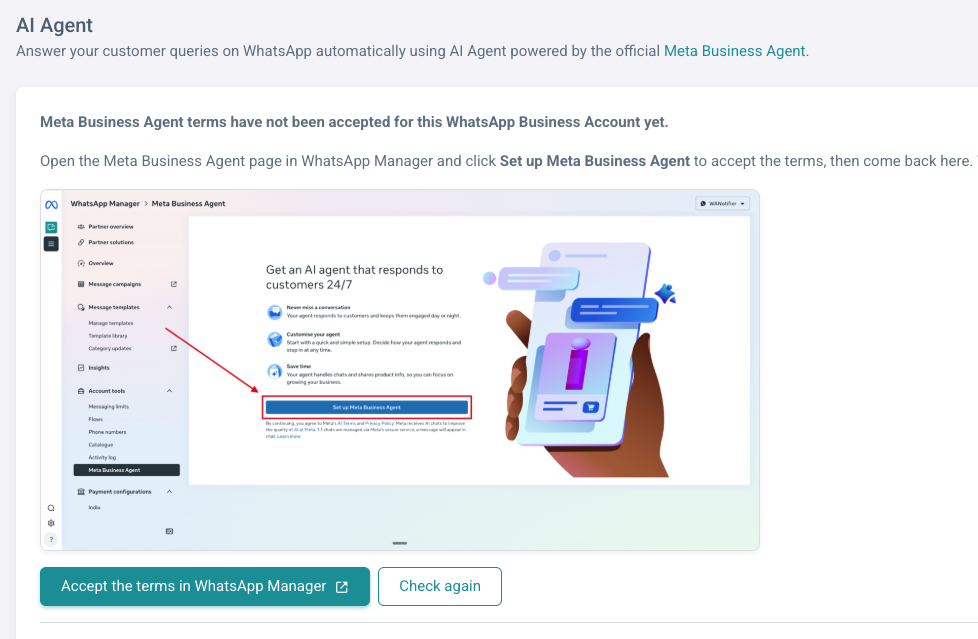
Note: If WhatsApp Manager shows “Sorry, this content isn’t available right now”, your WhatsApp Business Account isn’t eligible yet, so Meta doesn’t show the page where the terms are accepted. Meta decides eligibility per account and doesn’t share the reason. The usual causes are an unsupported business vertical, a missing business category, your business’s country, incomplete business verification, or a number that’s also used in the WhatsApp Business app.
Step 2: Check Eligibility and Connect the Agent
Once you have accepted the terms, WANotifier checks whether your number is eligible or not. If it is eligible, please click on Connect AI Agent. WANotifier creates the agent on your number, and then you can configure everything from there.
Also, if you’ve already set up a Meta Business Agent for your number directly in WhatsApp Manager, you don’t need to start over. WANotifier detects the existing agent and connects to it automatically.
Step 3: Add a Payment Method in Billing Hub
To let the agent reply to everyone who messages your number, you need to add a payment method to the Meta Business Agent Billable Account in Meta’s Billing Hub. WANotifier redirects you directly to the right page.
You can skip this step if you just want to test. Without a payment method, the agent can only reply to the numbers you add to your allowlist (learn more on that in Step 8).
Step 4: Add Your Business Knowledge
The agent is only as good as the information you give it, so you need to give the agent a complete context of the business. Go to the Configure tab and fill in these sections:
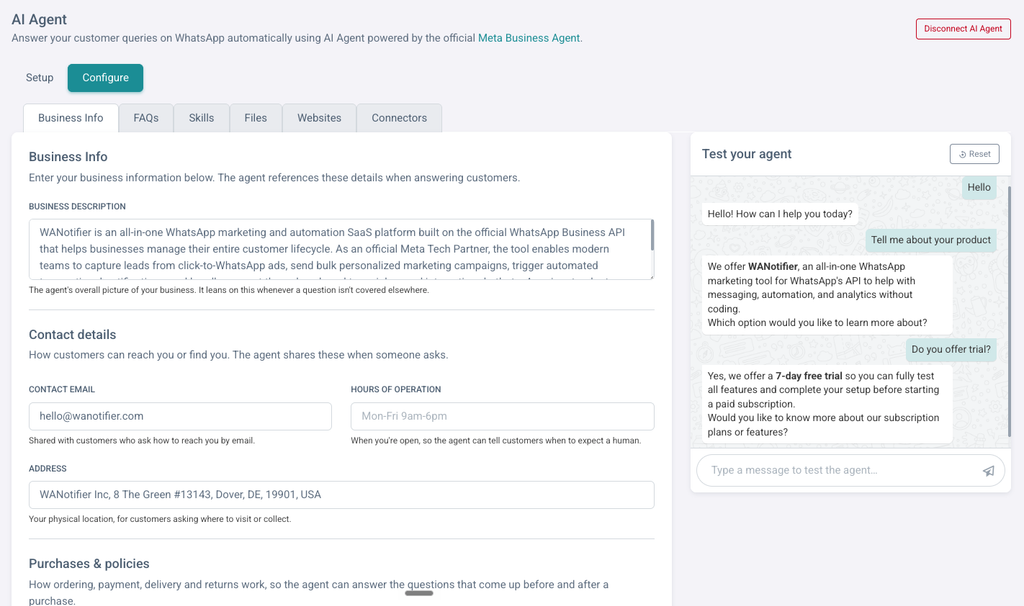
Business Info
Describe what you sell, who you serve, and anything the agent should know about your business or how you work. Then add your contact details and address, along with how ordering, payment, delivery, or returns work, or anything that’s relevant to the type of business you are in and frequently asked by your customers, so the agent can answer the questions that come up before and after a purchase.
FAQs
Add the questions your customers ask most often, with the exact answers you want them to get. This is the quickest way to make sure the agent answers your most common questions correctly.
Files
Upload documents (PDF, DOC, DOCX, CSV, XLSX) or images (PNG, JPG) for the agent to reference, up to 100MB each. Price lists, product catalogs, brochures, and policy documents all work well here. CSV and XLSX files work only when Meta has enabled spreadsheet extraction for your account.
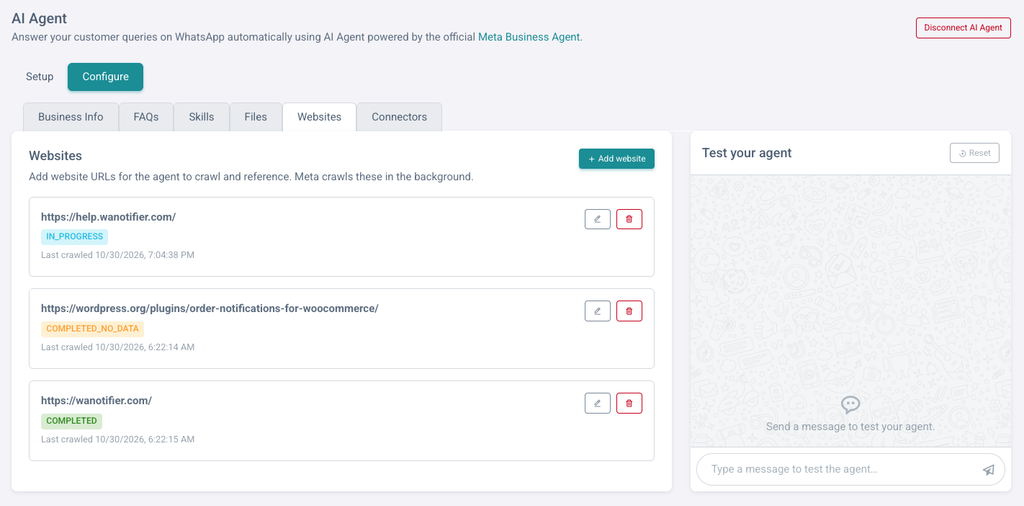
Websites
Add the URLs of pages you want the agent to learn from, like product, pricing, shipping, or FAQ pages. Meta crawls these in the background, so the agent can answer from your latest website content.
Step 5: Shape How the Agent Responds with Skills
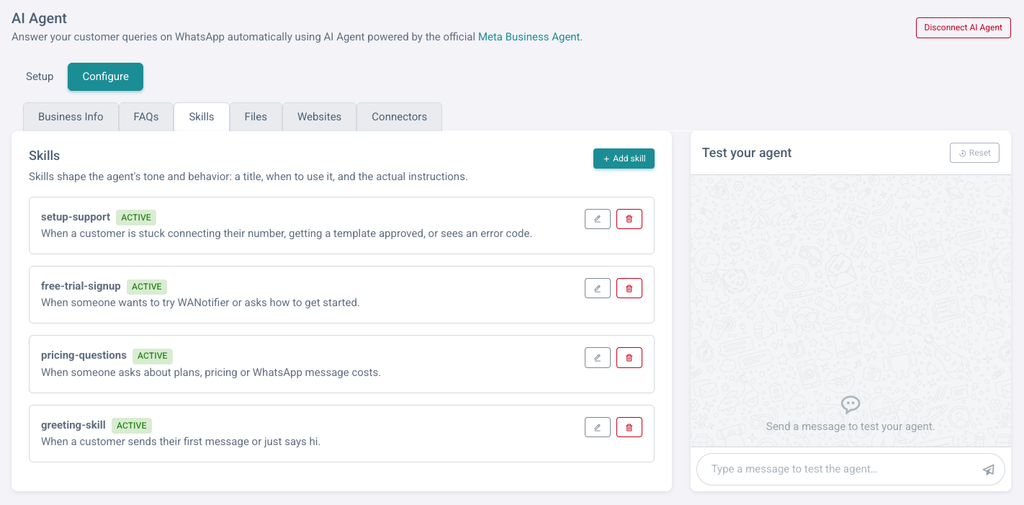
Here skills control the agent’s tone and behavior in specific situations. You can setup each skill differently with its title, a note on when to use it, and the instructions the agent should follow. This is usefull to follow brand guidilines and replicate your brand’s personality.
For example, you could add a skill that tells the agent to always share your return policy link when someone asks about returns, or to recommend your bestseller when a customer can’t decide between products. Meta reviews each skill, and a skill that fails the review is marked as blocked until you edit it.
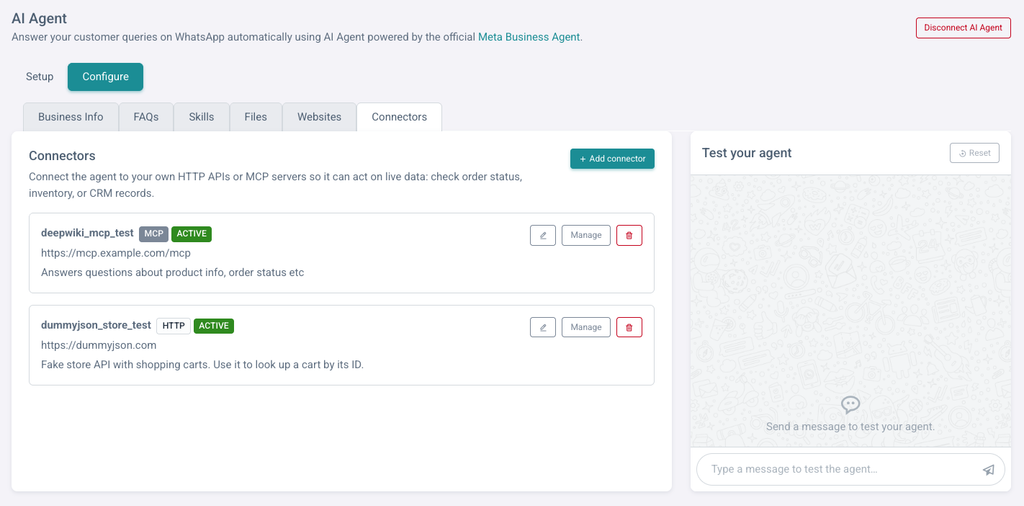
Step 6: Connect Your Systems with Connectors (Optional)
Connectors let the agent act on live data from your own systems, like checking an order’s status, looking up stock levels or pulling a customer’s record from your CRM. You can connect your own HTTP APIs or MCP servers, with support for API keys, OAuth 2.0 client credentials and mTLS.
Each connector is made up of tools, where each tool is one specific operation (for example, “check order status”) with a description that tells the agent when to use it. A connector with no tools is never used, so you should add at least one tool to each connector.
For ecommerce stores, this is where the agent becomes truly useful: with access to product, order and shipping data from your store’s backend, it can answer “where is my order?” without involving your team.
Step 7: Set Up Handoff and Followup
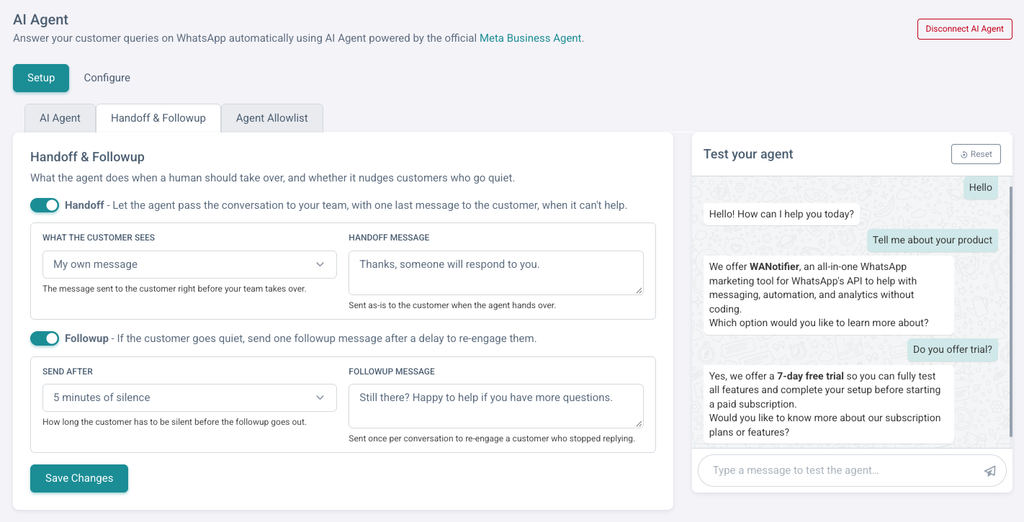
Under Setup → Handoff & Followup, you can control and decide what happens when the agent can’t help, and whether it should nudge customers who stop replying:
- Handoff: You can let the agent pass the conversation to your team when it can’t help. You can also choose the message the customer sees before your team takes over. There are basically three options that you would get: Meta’s standard handoff message, a message the agent writes for each conversation, or you can also setup your own message, such as “Thanks, a member of our team will get back to you shortly.”
- Followup: If a customer is not replying and goes quiet, the agent can send one followup message to re-engage them. You can choose the delay in which the agent should nudge, from 5 minutes to 24 hours of inactivity, and also the message you want to send. For example “Still there? Happy to help if you have more questions.” This can be extremely usefull, as people have short a attention span and can help engage with the, and get their attention back without investing your time.
Step 8: Test the Agent Before Going Live
You can use the test chat panel on the right side of the AI Agent page to send messages to your agent and see how it replies. If the agent hands off a conversation to your team, the test chat tells you why it did that.
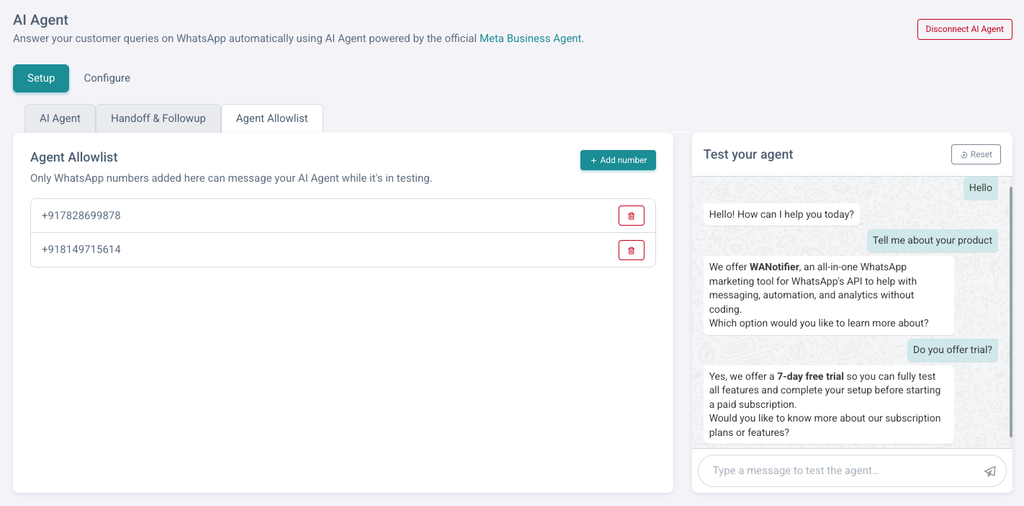
To test on WhatsApp itself, you can try adding your own number and your team’s numbers under Setup → Agent Allowlist. As the agent is set to reply only to allowlisted numbers, regular customers aren’t affected.
Step 9: Go Live
When you’re happy with the replies your agent is giving, you can go to Setup → AI Agent. You need to switch the agent on and set Who can message the agent to Everyone who messages this number. And viola!! You have setup your first AI agent on WhatsApp with WANotifier by following these simple steps. From now on, the agent replies to your customers as they message in.
If you want to pause the agent you can do so from the same screen at any time.
Train it on your business data, test it on your own number, and go live in minutes with WANotifier.
How to Manage AI Agent Conversations in Your Team Inbox
Every conversation the agent handles appears in your WANotifier shared team inbox, both on the web and in the mobile app, so your team always has the full picture. Lets see how working alongside the agent looks like in practice:
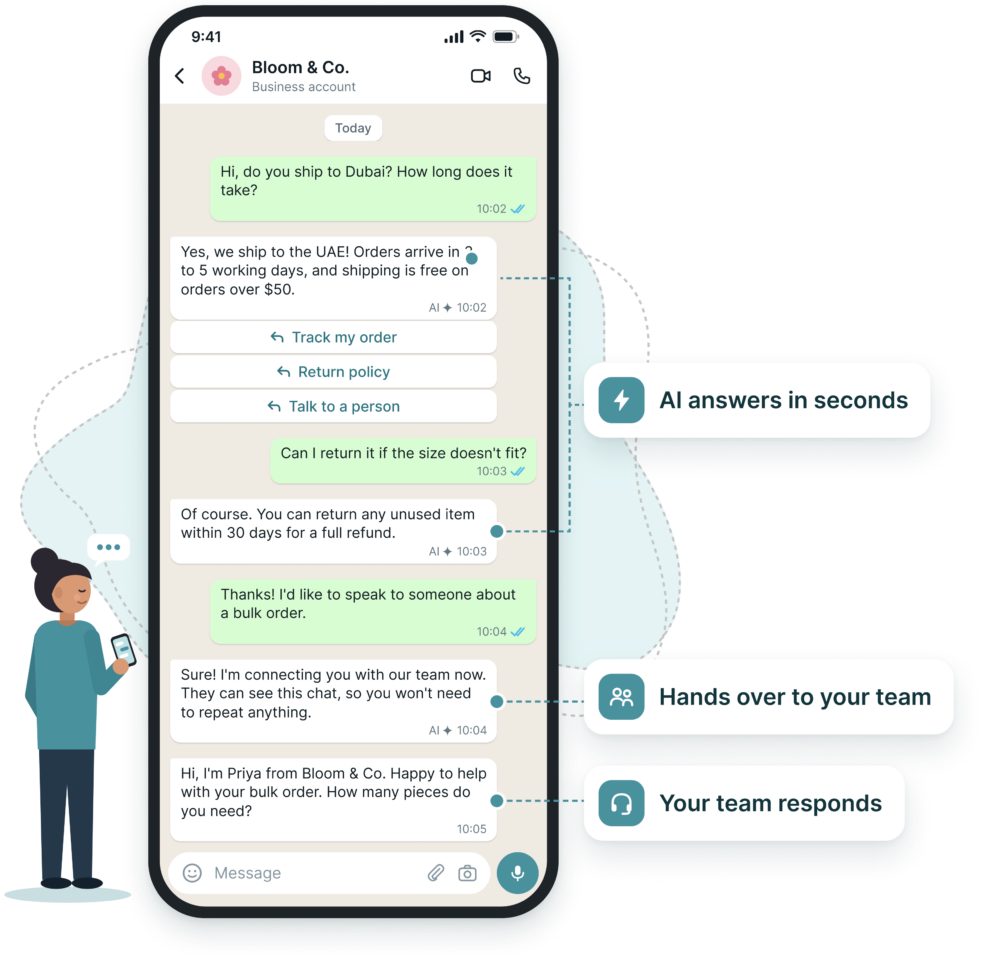
- Agent replies are clearly marked. Messages sent by the agent show an AI Agent label, so you can tell them apart from your team’s replies. (See the image below)
- The composer stays locked while the agent is replying. This stops both, a person from your team or the agent from replying to the same customer at once. If you want to step in, just click Take over, and you can take up the conversation from there with full context.
- Taking over is instant. As soon as someone on your team sends a message, the agent doesn’t reply in that conversation.
- Hand back with one click. When you’re done, click Hand back to AI Agent in the bar above the composer, and the agent picks the conversation up again from where you left.
- Your team gets notified on handoff. When the agent hands a conversation over to your team, the assigned team member gets a push notification. And if no one is assigned, your team members are notified, so you can take over the conversation and the customer doesn’t wait.
Note: During handovers to your team and takeovers by the agent, complete history and context of the chat is preserved, so you can serve your customer better.
How to Track Your AI Agent’s Performance
To track your AI agent’s performance go to Analytics → AI Agent Insights to see how your agent is doing. You can track the performance there with:
- Conversations: How many conversations the agent replied to, and how many are currently waiting for a human
- Tool calls: Volume, response time and success rate for each connector tool the agent called
- Agent events: Business events reported to the agent, and how many were processed successfully
- Conversation trace: A step-by-step view of how the agent handled the conversations with a specific customer, so you can see why it replied the way it did
You can use these insights to find gaps in your process or if the agent keeps handing off the same type of question, add an FAQ or a file that covers it.
Best Practices for Getting the Most Out of Your WhatsApp AI Agent
Start with Your Most Common Questions
Look at your inbox and list the top 20 to 30 questions your team answers most often. Add them as FAQs first and you will have covered a large share of your conversations that your team handles from day one.
Keep Your Business Info Up to Date
The agent answers from the information and context that you give it. When your prices, policies, delivery areas or opening hours change, you should update your business info, files and website pages right away.
Test with Your Team Before Going Live
Try keeping the agent on allowlist-only mode for a few days and have your team ask it real customer questions that your customers might ask. Fix any wrong or vague answers before you open it up to everyone so that you are sorted for most use cases.
Make Handoffs Smooth
Turn on handoff and write a clear handoff message or let AI decide the message based on the context. Either way your customers knows a person will get back to them. Then you can assign conversations to the right team members, so handoff notifications reach someone who can act on it promptly.
Use Chatbots and the AI Agent for Different Jobs
Use rule-based chatbots for structured journeys where you need exact steps, like lead qualification or bookings. Let the AI Agent handle the open-ended questions in between. (Refer the table above for more information on this)
Review Insights Regularly
Stay updated and check AI Agent Insights every week. Take a look at the conversations that were handed off and use them to improve your FAQs, files and skills, so that you train your agent to handle maximum number of conversations by itself.
Limitations of the WhatsApp AI Agent
Please keep these limitations in mind as you plan your WhatsApp AI agent setup:
- WhatsApp AI agent is not available on coexistence numbers. The agent needs a business number connected directly to the WhatsApp Cloud API.
- Some of the business verticals aren’t supported. Meta doesn’t allow the agent for some business verticals like finance, government, health, alcohol or gambling businesses.
- Eligibility is decided by Meta. Meta checks each WhatsApp Business Account and number, and doesn’t always share the reason when one isn’t eligible.
- Usage is billed by Meta. The agent’s token charges are separate from your WANotifier plan and regular messaging charges, and are billed directly by Meta. Check pricing page for more details.
- Answers depend on your data. The agent can only be as accurate as the business info, FAQs, files, pages and connectors you give it.
Conclusion
Customers nowadays expect fast answers on WhatsApp, at any given hour, and prefer to communciate in their confortable language and own words, instead of predefined buttons or scripts. The WhatsApp AI Agent lets you give them that freedom without growing your team. It answers the questions your traditional rule-based chatbots weren’t built for, hands the tricky ones directly to your team, and keeps every conversation in one shared inbox.
With WANotifier, you get the official Meta Business Agent along with everything else you need to capture, engage and convert customers on WhatsApp: campaigns, rule-based chatbots, drip sequences, a built-in CRM, a shared team inbox and detailed analytics, all with 0% markup on Meta’s rates.
👉 Sign up today and set up your WhatsApp AI Agent in minutes.
Elevate your WhatsApp marketing with WANotifier. Easy to set up. Built to scale. No hidden costs.
Frequently Asked Questions
What is the WhatsApp AI Agent?
The WhatsApp AI Agent is an AI assistant that replies to your customers on WhatsApp automatically. It answers free-form questions using your business info, FAQs, files and website pages, and hands conversations to your team when it can’t help. In WANotifier, it’s powered by the official Meta Business Agent.
Is the WhatsApp AI Agent the same as a chatbot?
No. A rule-based chatbot follows the flows you design, with fixed steps and buttons. The AI Agent understands open-ended questions and writes its own replies from your business data. It works independently of your chatbots, and many businesses use both.
How much does the WhatsApp AI Agent cost?
The AI Agent is included in WANotifier’s Advanced and Premium plans. On top of that, Meta charges for the agent’s usage based on tokens, at a published rate of $2.00 per 1 million tokens at the time of writing, billed directly by Meta through Billing Hub.
Can I use the AI Agent on a WhatsApp Business app number?
No. Meta doesn’t support the agent on numbers that use WhatsApp Coexistence (the WhatsApp Business app and API on the same number). You can add a new number directly to the Cloud API through WANotifier, or move your current number fully to the Cloud API.
Can my team take over a conversation from the AI Agent?
Yes. Click Take over in the WANotifier inbox, or simply reply to the customer, and the agent goes quiet in that conversation. When you’re done, click Hand back to AI Agent to let it take over again.
Can the AI Agent check order status or other live data?
Yes, if you connect it to your systems. Using Connectors, you can link the agent to your own HTTP APIs or MCP servers so it can look up live data like order status, shipping updates, stock levels or CRM records.
Can I test the AI Agent before customers see it?
Yes. Use the test chat on the AI Agent page, and add your team’s numbers to the Agent Allowlist. While the agent replies only to allowlisted numbers, your customers aren’t affected.