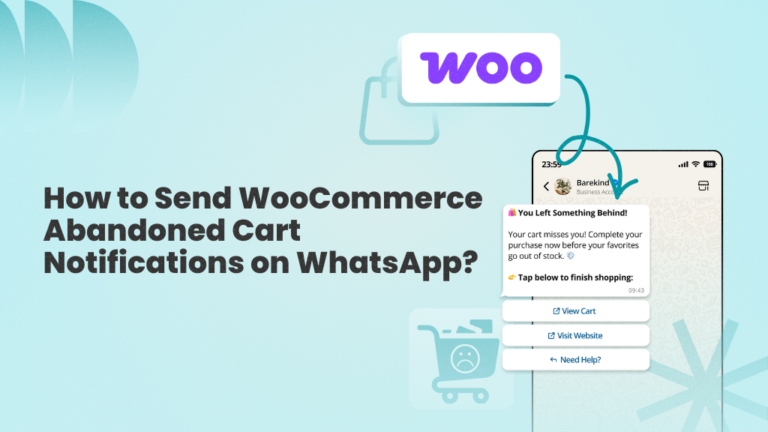
If you run a WooCommerce store, you’ve probably seen this happen more often than you’d like: a customer visits your store, browses a few products, adds something to their cart… and then leaves without completing the purchase.
Unfortunately, this is incredibly common in e-commerce. People get distracted, start comparing prices, or decide to “come back later” and forget about it entirely.
But it’s not all bad news. The fact that these shoppers added products to their carts means they were already seriously considering the purchase. In many cases, all it takes to bring them back is a quick reminder sent at the right moment.
And that’s exactly where WhatsApp abandoned cart reminder notifications can help you.
In this article, I’ll show you how to set up and send these notifications from your WooCommerce store and recover lost sales and revenue.
Install WANotifier's Order Notifications for WooCommerce Plugin
Or click here to download the plugin and install it manually!
Why Use WhatsApp for WooCommerce Abandoned Cart Recovery?
If you’re already sending abandoned cart emails or SMS reminders, you might be wondering: why bring WhatsApp into the mix?
Here are a few reasons to help answer that question:
1. Reach Customers Instantly on Their Phones
WhatsApp messages are delivered directly to a customer’s phone within seconds. This means there’s no waiting for someone to open their inbox or scroll through a long list of promotional emails before they see your reminder.
Another factor to consider is that WhatsApp messages appear as push notifications, making them more likely to be seen while the recipient is still considering the purchase.
2. Get Higher Message Visibility and Open Rates
WhatsApp is one of the most widely used messaging platforms in the world, with more than 3 billion monthly active users and open rates of up to 90%.
For WooCommerce store owners, that visibility can make a huge difference. Since their customers are already on the messaging app and actively opening and engaging with their messages, there is a higher chance they will respond to abandoned cart reminders and convert.
3. Automate Your Abandoned Cart Recovery
Manually reminding customers about abandoned carts can quickly become exhausting (and unrealistic). However, by integrating your WooCommerce store with WhatsApp, you can automatically trigger reminders whenever a customer leaves items in their cart.
You can also use WhatsApp automations to:
- Set up auto-replies that instantly answer common questions about products, pricing, or shipping
- Create chatbots that guide customers through different product options or help them complete their order
- Implement a drip sequence (or a series of messages) that gently reminds customers to complete their purchase
4. Encourage Swift Customer Action
Another advantage of using WhatsApp for abandoned cart reminders is that it encourages customers to engage in a conversation with your store and act quickly upon your messages.
For example, customers can reply to your messages to ask questions about delivery timelines and pricing or to report any issues they may have encountered while trying to complete their purchase.
You can also include direct checkout links and limited-time offers in your messages, making it easier (and more appealing) for customers to complete their order.
Now that you know how sending abandoned cart notifications on WhatsApp can benefit your WooCommerce store, let’s look at what you need to get started.
What You Need to Connect WooCommerce with WhatsApp
To connect your WooCommerce store with WhatsApp and start sending abandoned cart notifications, you need two things:
- Access to the WhatsApp Business API: The WhatsApp Business API enables businesses to connect tools like WooCommerce to WhatsApp and send a wide range of messages, including abandoned cart reminders, at scale.
- A WhatsApp marketing and automation tool like WANotifier: The WhatsApp Business API does not include a built-in dashboard or user interface you can use directly. Platforms like WANotifier bridge this gap by giving you access to the API and enabling integration with 3rd-party software like WooCommerce.
Before we get to the setup process, let’s briefly look at what the WhatsApp Business API is and why you should use a tool like WANotifier to access its features.
What is the WhatsApp Business API?
The WhatsApp Business API is a solution provided by Meta that allows businesses to send messages to their customers at scale.
Unlike the personal WhatsApp app or WhatsApp Business app, which are mainly designed for manual, one-on-one messaging, the API is built for businesses that want to:
- Send WhatsApp campaigns (or notifications) to thousands of contacts at the same time
- Automate conversations using chatbots and advanced auto-replies
- Connect WhatsApp with their existing tools, such as their website, forms, CRM, or e-commerce platform like WooCommerce
… and do much more.
To learn more about how the WhatsApp Business API works, you can check out this comprehensive guide.
Where Does WANotifier Fit In?
As highlighted earlier, the WhatsApp Business API doesn’t include a built-in dashboard or user interface for direct use. To actually use it for messaging and automation, businesses need a third-party platform that comes with pre-built tools to leverage its features.
Now, there are many platforms that offer this functionality; however, most of them are either:
- Multi-channel solutions that bundle WhatsApp with other channels (such as email, SMS, and social media). These platforms usually lack a dedicated WhatsApp plan, which means you end up paying for features or channels you don’t really need.
- Or, they add a 12%-25% markup on WhatsApp’s official messaging charges, which can significantly increase your costs as your messaging volume grows.
This is where WANotifier stands out.
An official Meta Tech Partner, WANotifier provides a dedicated WhatsApp marketing and automation solution that helps businesses capture, engage, and convert customers on WhatsApp using a wide range of ready-to-use tools, including WhatsApp campaigns, a built-in CRM, auto-replies and chatbots, drip sequences, WhatsApp Flows, a shared team inbox, and advanced analytics.
On top of all that, WANotifier offers 0% markup on WhatsApp API charges along with transparent pricing that scales with your business.
Now that you know why you should choose WANotifier to power your WhatsApp messaging and send WooCommerce notifications, let’s look at how to set it up and start sending abandoned cart notifications.
How to Send WhatsApp Messages for Abandoned Carts in WooCommerce?
Setting up abandoned cart notifications from WooCommerce to WhatsApp is fairly simple. Just follow the steps below:
Step 1 – Create your WANotifier Account and Set Up Your Phone Number with the WhatsApp API
The first step is to create your WANotifier account and connect your phone number to the WhatsApp Business API. To do this, simply follow the instructions in the guide below:
>> Create your WANotifier account and set up the WhatsApp API
Note that if you’re already using the WhatsApp Business App, you can upgrade it to the WhatsApp API using the Coexistence feature. This will allow you to use both the business app and the API simultaneously without losing your chat history or contacts.
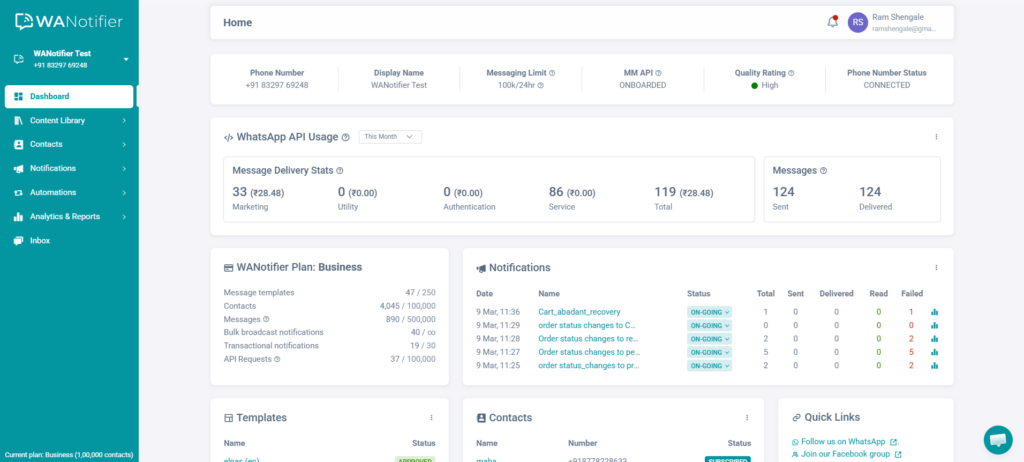
Once your account is set up and your number is successfully connected, you’ll be automatically redirected to your WANotifier dashboard.
Step 2 – Install and Activate Our WooCommerce Integration Plugin
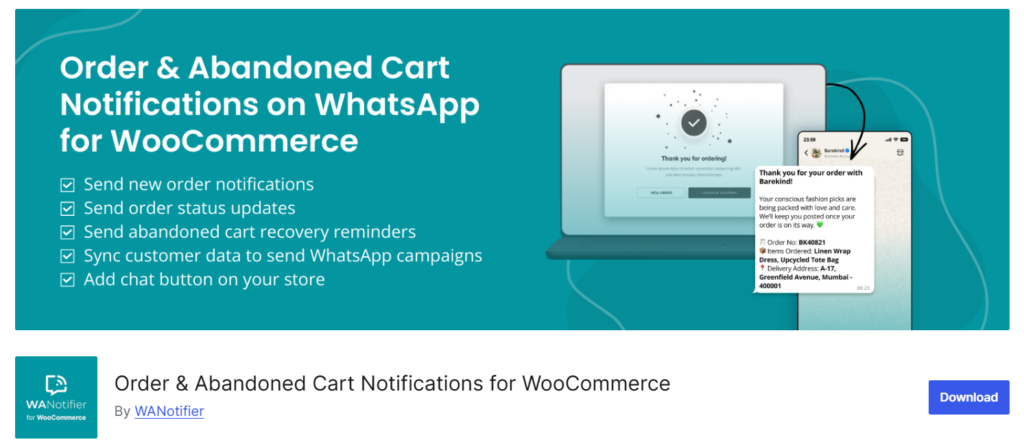
Next, download and install WANotifier’s WooCommerce integration plugin on your WordPress website.
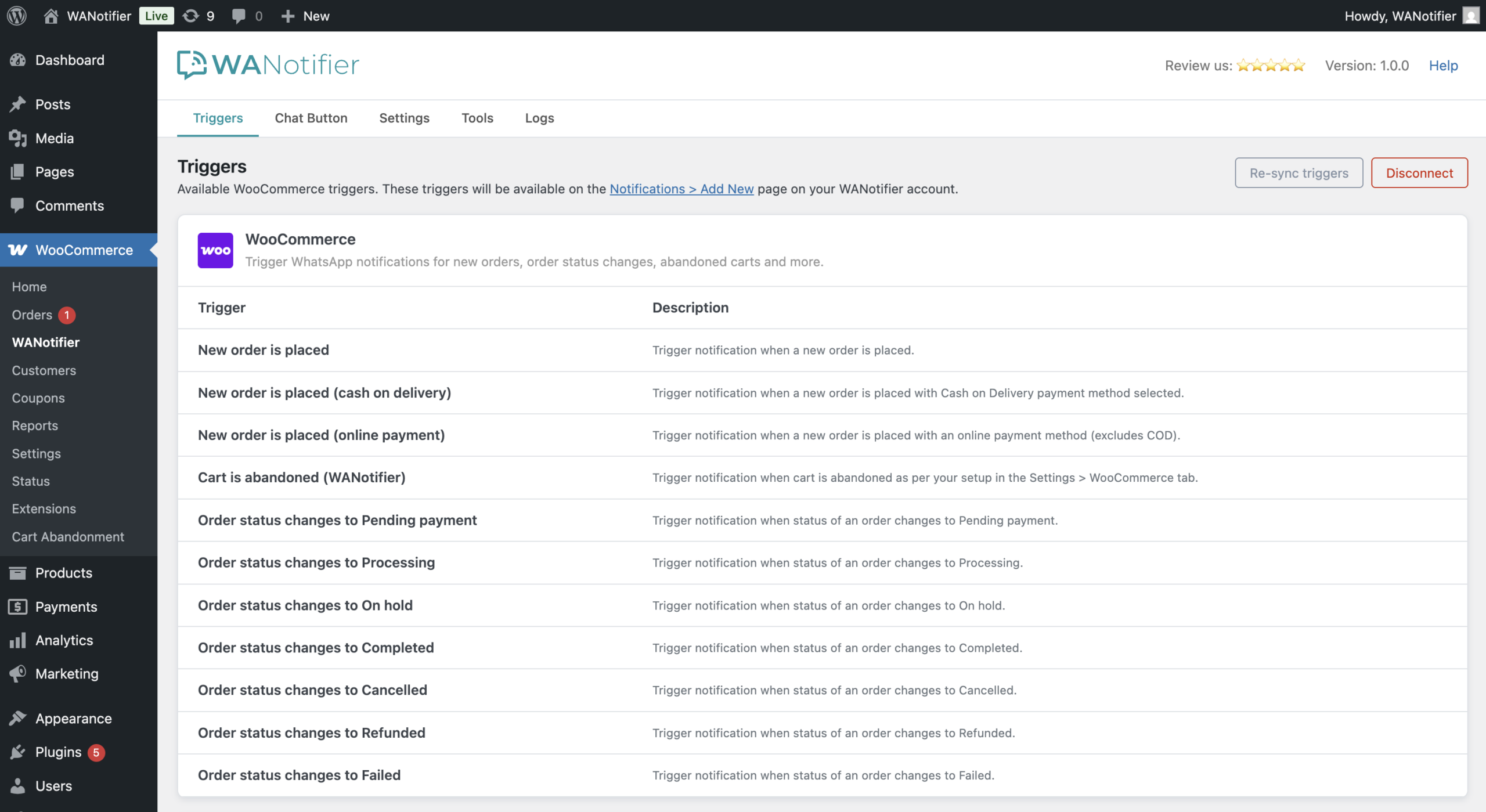
This plugin will enable you to connect your WooCommerce store to WANotifier and automatically trigger WhatsApp notifications for specific events, such as card abandonment, order cancellation, or order status changes (e.g., Processing, Completed).
Step 3 – Connect the WooCommerce Plugin with WANotifier
Once you’ve installed and activated the plugin, go to WooCommerce > WANotifier from the left sidebar menu. You’ll see a screen like this:
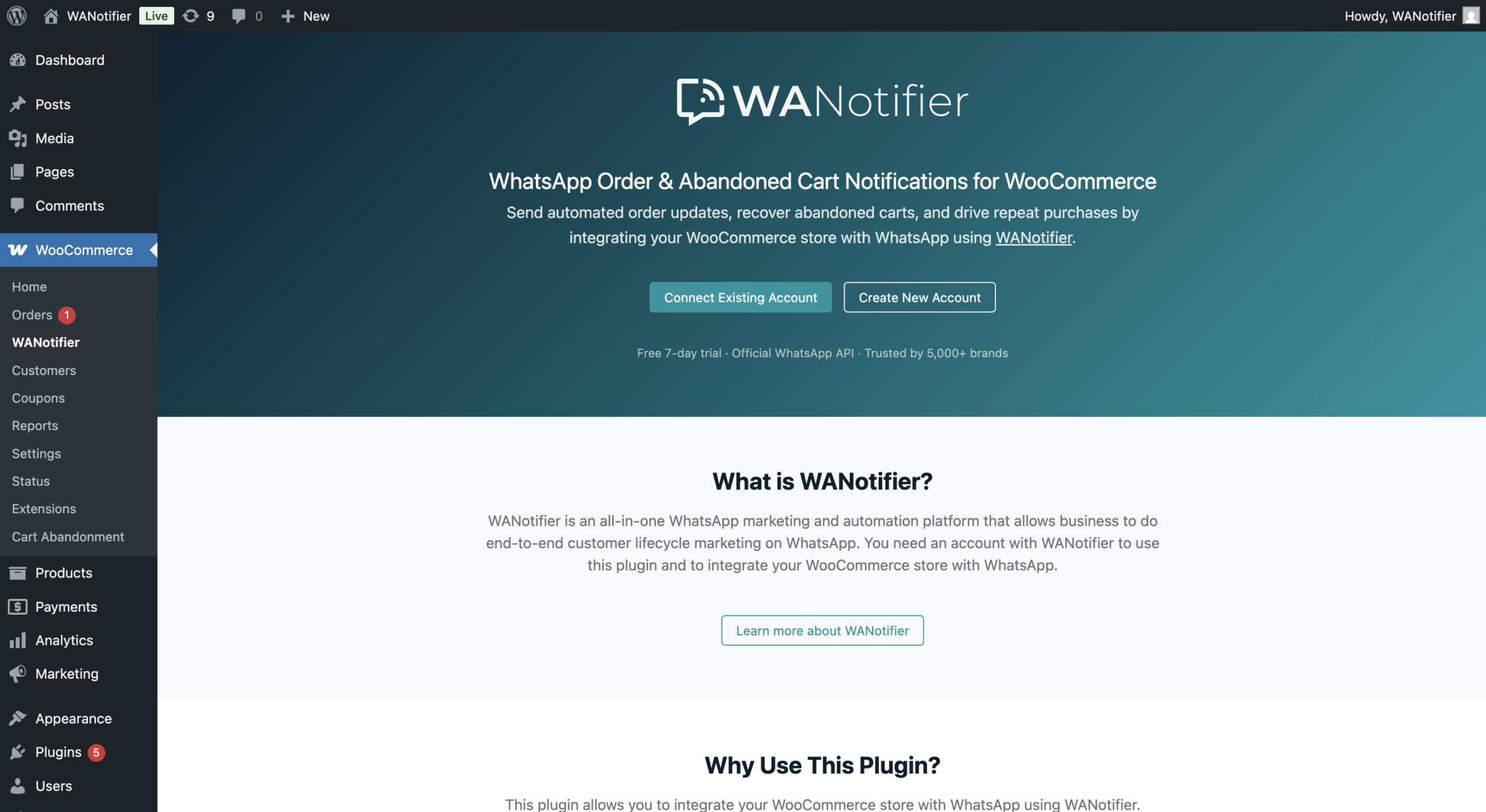
Click the Connect Your Existing Account button to link your WANotifier account with the plugin. If you don’t have an account yet, select Create New Account and follow the guide linked in Step #1.
Note that if you’re not logged in at this point, you’ll be redirected to the login page. Otherwise, you’ll see a confirmation screen like this:
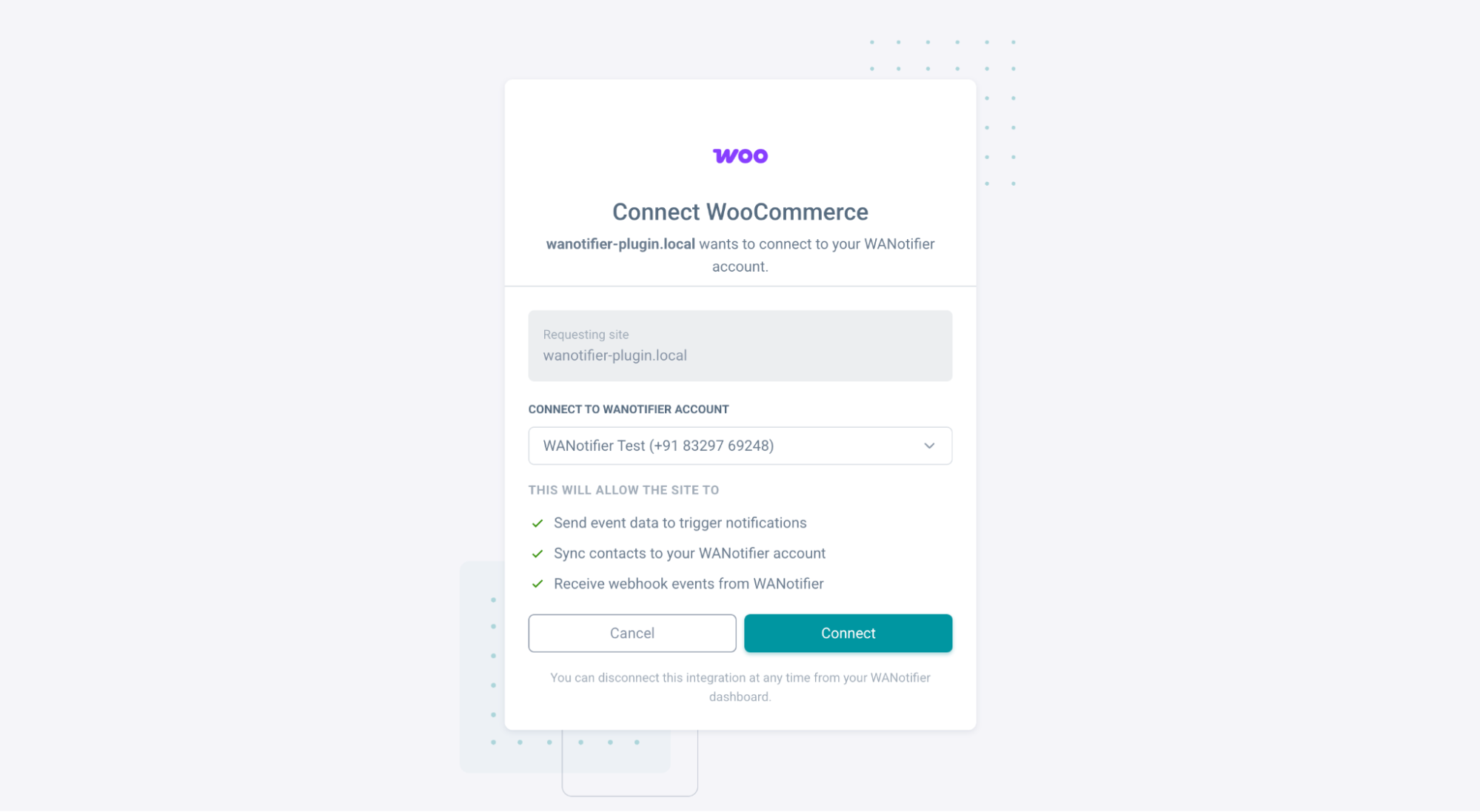
If you have more than one phone number setup with us, select the phone number that you want to connect with your WooCommerce store from the dropdown. Then click on Connect button to complete authorization.
You’ll be redirected back to this page:
Step 4 – Configure Abandoned Cart Settings
Next, configure your abandoned cart tracking settings in the plugin.
To get started:
- Go to WooCommerce > WANotifier > Settings from your WordPress dashboard and select the Abandoned Cart option from the left sidebar.
- Enable Cart Tracking by checking the Start capturing abandoned carts checkbox.
- Then, set the cart abandonment cut-off time (for example, 24 minutes). This determines when a cart is considered abandoned.
- Click on the Save Changes button.
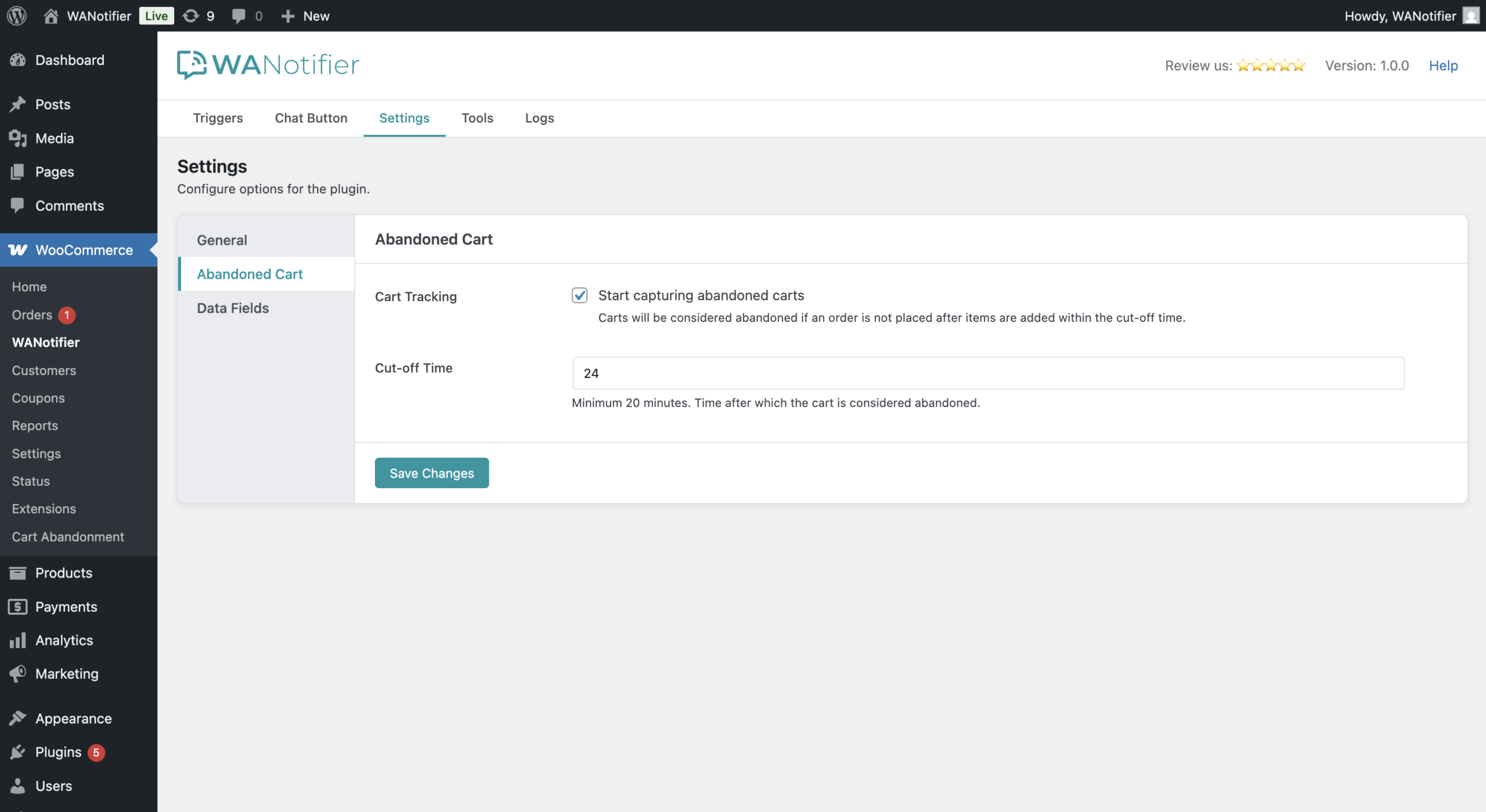
Once this is set up, the plugin will automatically start tracking abandoned carts on your WooCommerce store.
Step 5 – Create Message Template on WANotifier
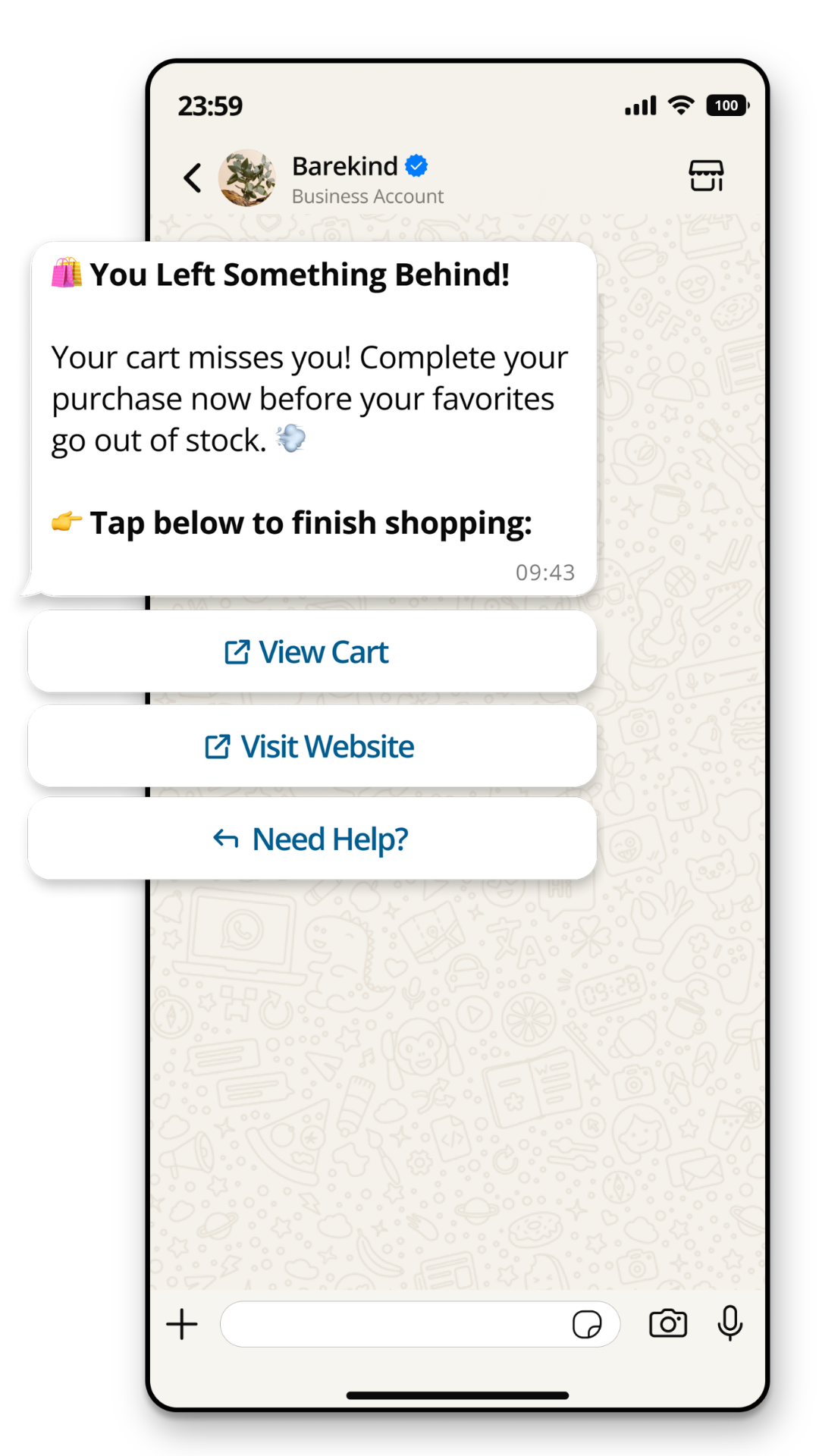
The next step is to create a message template in your WANotifier account that will be sent to customers when they abandon their carts.
Here’s how to create one:
- Go to your WANotifier account, click the Content Library option in the left sidebar, then select Message Templates from the dropdown.
- Once you’re on the Message Templates dashboard, click on the Add New Message Template button in the top-right corner to create a new template.
- You can create a template with static body text or with variables like {{1}}, {{2}} and so on.
- You can map these variables to actual data fields when creating a notification, as shown in the next step.
- You can also add text, an image, a PDF, or a video to the template header, add footer text, and include buttons in the template footer.
- After creating the template, you have to submit it to WhatsApp for review.
Note that it can take anywhere from a few minutes up to 24 hours for WhatsApp to review your template.
Once approved, you can use the template to send abandoned cart notifications to your customers, as shown in the next and final step.
Step 6 – Create a Notification
Finally, let’s create a notification. This will tell the system which message to send when a customer abandons their cart.
Here’s how to set up a notification:
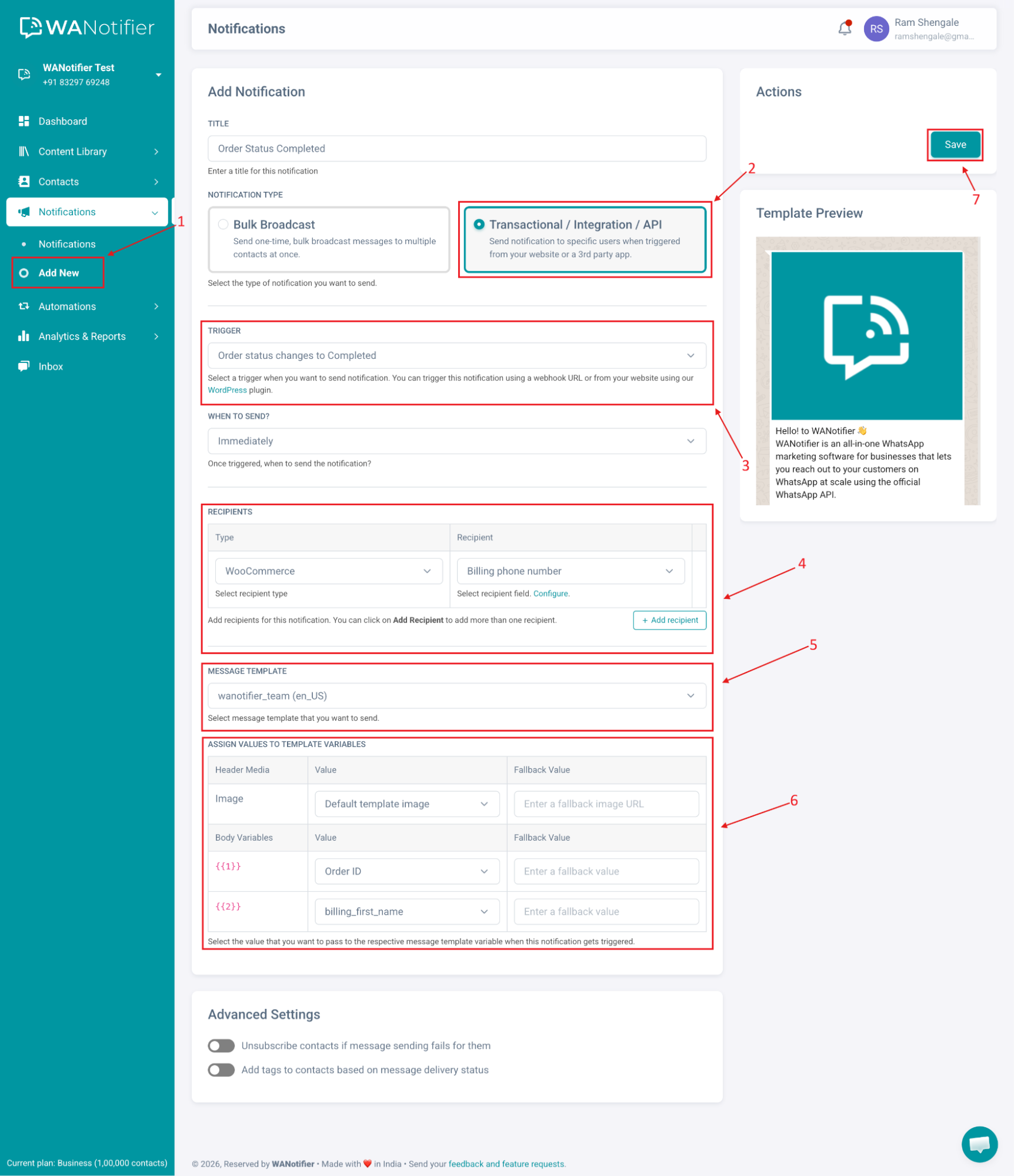
- In your WANotifier account, click Notifications in the left sidebar, then select Add New from the dropdown.
- Select Notification type as Transactional/ Integration/ API.
- In the Trigger dropdown, choose “Cart is abandoned” under WooCommerce.
- In the Recipients section, select WooCommerce Cart Abandonment as the recipient type, and then choose the Customer billing phone number as the recipient. You also have the option to automatically add the recipient’s phone number to your contact list and apply tags for audience segmentation by clicking the Configure option here.
- Now select the Message Template you created in step #5
- If your message template contains variables, map them to the available Data fields. You can also add a Fallback value in case the Value field might come empty.
- After this is done, click on the Save button to save this notification.
That’s it! Now, whenever a customer abandons their cart on your WooCommerce store, WANotifier will automatically send a WhatsApp notification to them.
How to Add Abandoned Cart Recovery URL in Your WhatsApp Message?
To include a recovery URL in your abandoned cart message, you’ll need to configure a button while creating your message template (as shown in Step #5 above) and link it to this URL.
Here’s how you can do that:
Step 1 – Add Message Template With Dynamic Recovery URL In Button
- Go to Message Templates page and click on the Add New button to create a new template. Create your template as usual.
- Scroll down to the bottom to add a button by selecting Visit Website under Call to Action in the Button dropdown.
- Next, select Visit Website as the BUTTON TYPE and add your preferred Button Text (e.g., Complete Your Order).
- In the Website URL field, enter your cart recovery URL in this format:
https://website.com/cart/?wano_session={{1}}- Here you need to replace the first part of the URL,
https://website.com/cart/with your website’s cart page URL - And keep the second part,
?wano_session={{1}}as it is.
- Here you need to replace the first part of the URL,
- Then enter Example URL for Website Button in following format:
https://website.com/cart/?wano_session=123456- Here you need to replace the first part of the URL,
https://website.com/cart/with your website’s cart page URL - And keep the second part,
?wano_session=123456 as it is.
- Here you need to replace the first part of the URL,
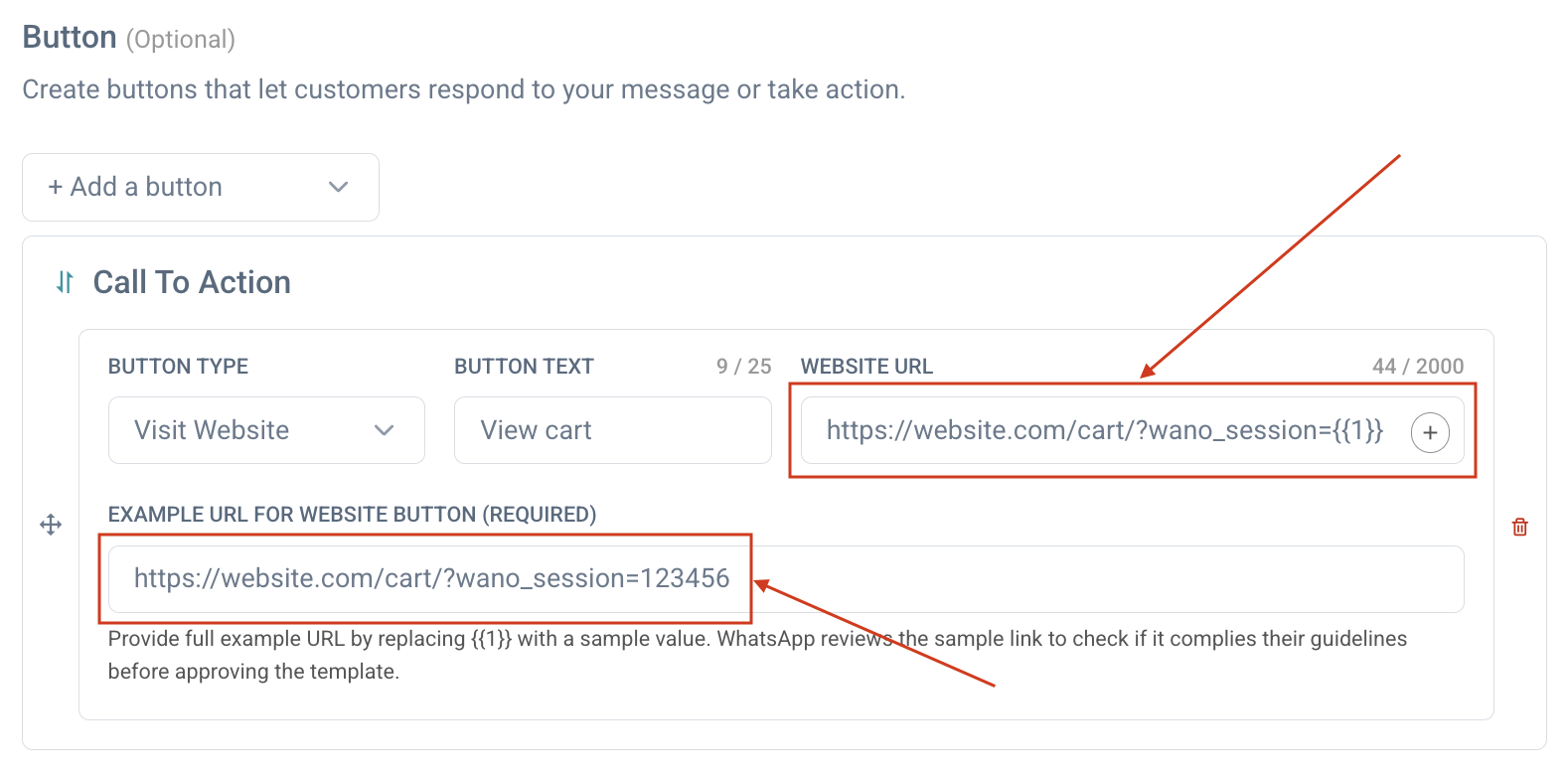
After your template is ready, submit the template for WhatsApp approval.
Step 2 – Create Notification And Map Button Variable
- Go to Notifications page, click on Add New and create a transactional notification as described above.
- Select the template you got approved earlier
- You’ll see that your template has a button_variable(1) field. Select the Abandoned Cart Recovery Key option here to map the recovery URL to this button.
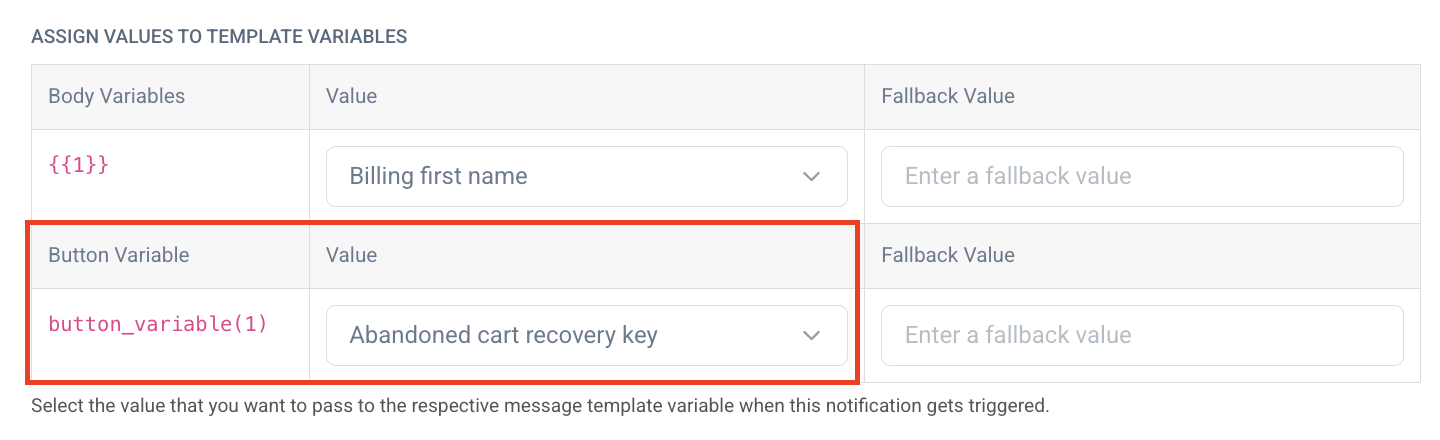
That’s it! Your abandoned cart messages will now include a button with a recovery URL, allowing customers to quickly return and complete their purchase.
Conclusion
Sending abandoned cart recovery notifications on WhatsApp isn’t as complicated as it might seem.
With the WhatsApp Business API and a platform like WANotifier, you can automate timely reminders, engage customers when it matters most, and recover lost sales, without technical complexity or prior experience.
Plus, with 0% markup on WhatsApp API usage costs, you can scale your messaging confidently without hidden costs cutting into your margins.
👉 Download the WANotifier WooCommerce plugin today and start recovering abandoned carts on autopilot.
Install WANotifier's Order Notifications for WooCommerce Plugin
Or click here to download the plugin and install it manually!
Frequently Asked Questions (FAQs)
Do I need the WhatsApp Business API to send abandoned cart messages?
Yes. To send automated abandoned cart notifications on WhatsApp, you need access to the WhatsApp Business API.
Neither the personal WhatsApp app nor the WhatsApp Business App supports integrations with platforms like WooCommerce. The API is what enables you to connect your store and send automated messages based on specific events, like cart abandonment, at scale.
Can I automate WooCommerce abandoned cart reminders?
Yes, you can. Once you integrate your WooCommerce store with WhatsApp using a tool like WANotifier, you can automate not just abandoned cart reminders, but also order confirmations, status updates, and more.
How soon should I send an abandoned cart notification?
Ideally, you should send the first reminder within 15 to 30 minutes of cart abandonment, while the customer’s interest is still high.
You can then follow up a few hours later or set up a drip sequence to gently nudge the customer over the next few days.
Do I need customer consent to send abandoned cart notifications on WhatsApp?
Yes. WhatsApp requires businesses to obtain explicit consent from customers before sending them messages.
How can I track the performance of WhatsApp abandoned cart notifications?
You can track the performance of your abandoned cart notifications using WANotifier’s advanced analytics, which lets you monitor:
- Message delivery and open rates
- Performance of individual message templates
- Chatbot and drip sequence sessions
…and more